
Assign phone numbers
Assigning a phone number to a Teams user is the most common management task. Once a number is assigned, the tenant routes incoming calls from Live Hub to that user, and that user can dial out through Live Hub.
Assigning a number is not enough on its own. Calls also require routing rules on the Live Hub side.
To assign a phone number to a Teams user:
-
In the Navigation pane, expand Voice channels, and select Microsoft Teams.
-
Under Teams connection, click Manage.
The Teams Management portal opens in a new browser tab.
-
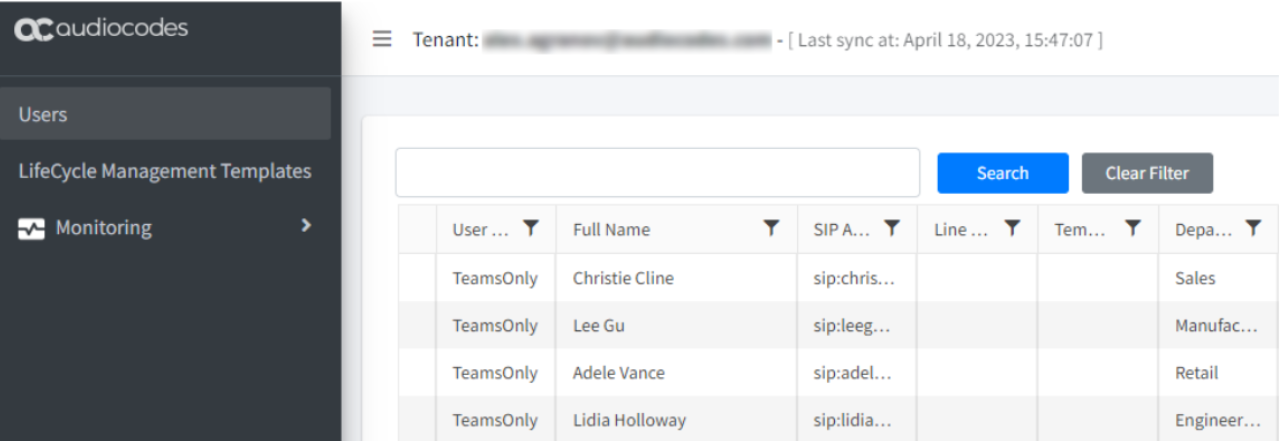
In the portal, select Users, and then find the user.
-
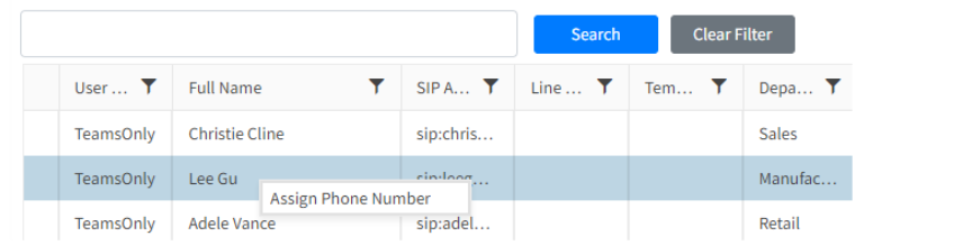
Right-click their row, and select Assign Phone Number.
-
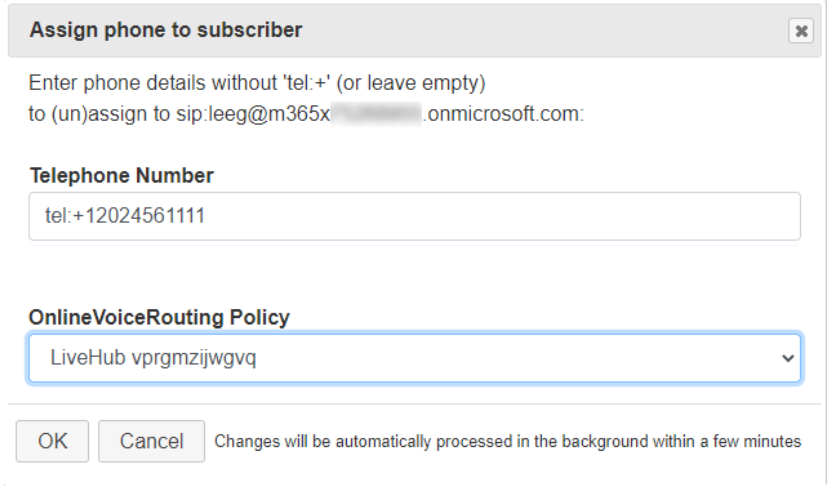
In the Assign phone to subscriber dialog, enter the phone number.
-
Leave 'Online Voice Routing Policy' at its default.
The policy name matches your Teams connection's FQDN prefix. There is normally only one entry beginning
LiveHub, and it is already selected. If there are several, check the connection's prefix on the Microsoft Teams screen and select the matching policy. -
Click OK.
-
Wait up to 10 minutes.
To watch progress, select Monitoring > Queued Changes. To run the queued changes immediately, click Process All. Even after every operation succeeds, the assignment takes a few more minutes to take effect.
-
On the Users screen, check that the number appears against the user.
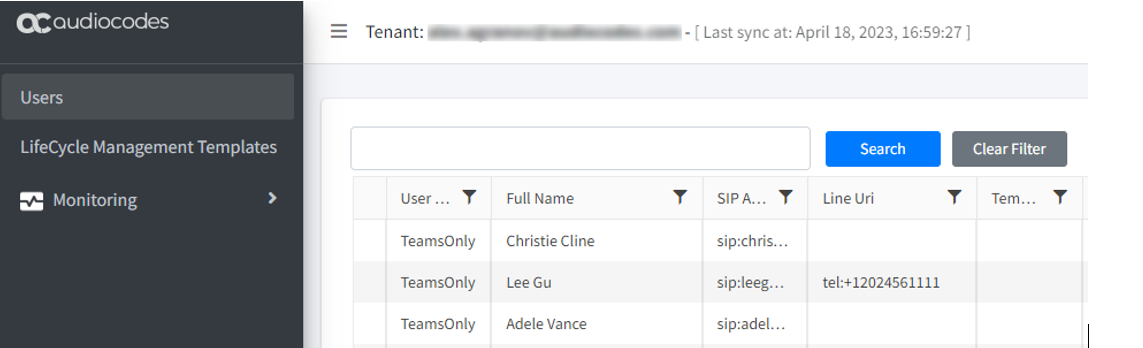
If the number does not appear, refresh the browser or select Users again.
-
Tell the affected users to sign out of their Teams clients and then sign in again. Otherwise their profiles can take up to 24 hours to pick up the change, and calls do not work until they do.